Tagged: HDMI 2.1 Switch Setup Guide, PS5 Xbox Gaming Accessories, Home Theater HDMI Hub

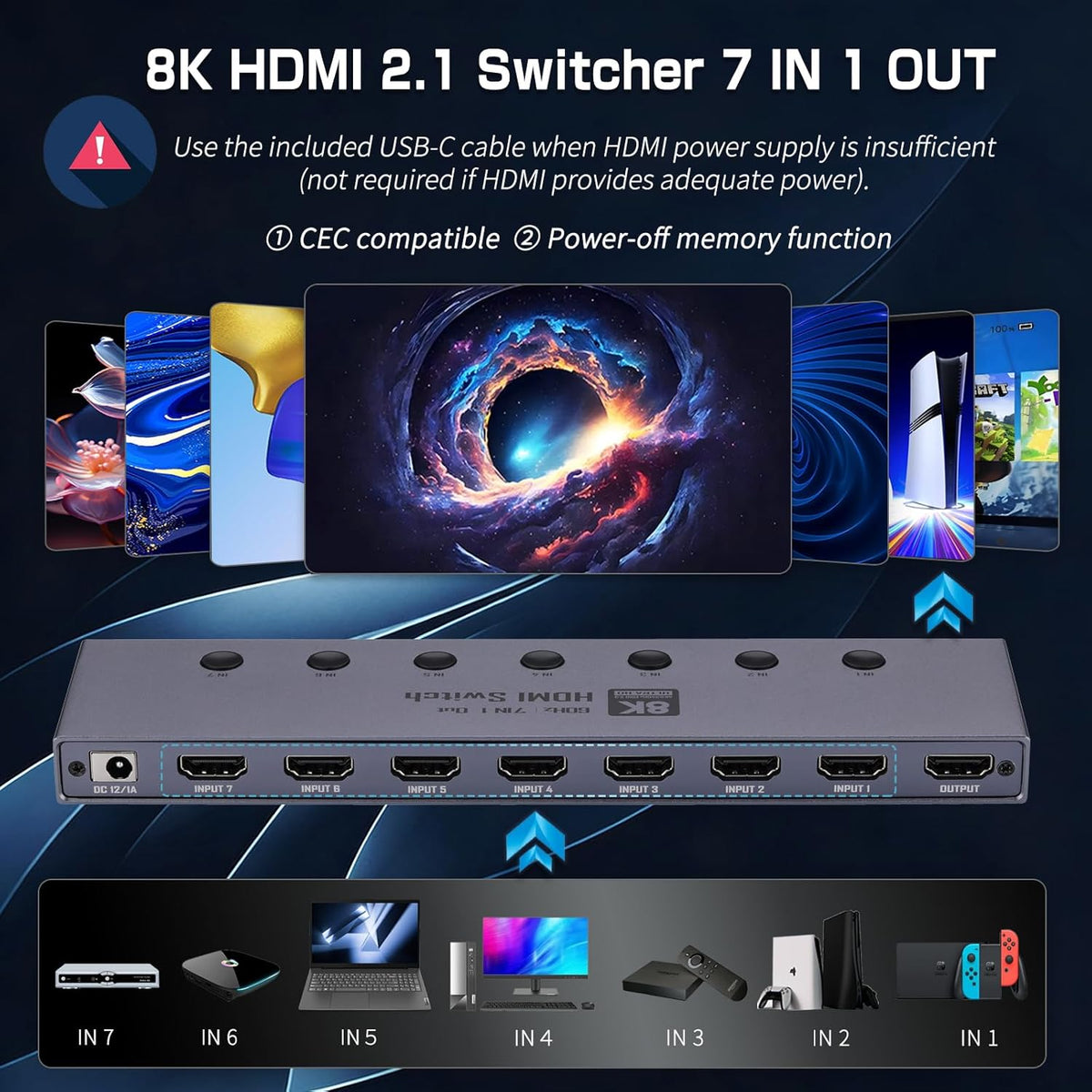
The QGEEM 8K HDMI 2.1 Switch you get right out of the package, all ports clearly labeled for zero guesswork
Tired of crawling behind your TV every time you need to swap between your PS5, Xbox Series X, Blu-ray player and laptop? Sick of yanking cables so hard you risk damaging your expensive console ports? This QGEEM 7-in-1 8K HDMI 2.1 Switch is the ultimate fix for every messy home theater and gaming setup – and we’ll walk you through every step to get it running in 3 minutes flat, no confusing tech jargon included.
📦 What You Get In The Box Before You Start
No hidden missing parts, no extra purchases required:
1 x QGEEM 7-in-1 Out 8K HDMI 2.1 Switch main unit
1 x IR wireless remote control
1 x 12V/1A power adapter
1 x full user manual with all spec details
🚀 Step 1: 3-Minute Physical Setup (Works For All Devices)
Follow these simple steps, no professional tech support needed:
First, power off all your connected devices including your TV, monitor, PS5, Xbox and Blu-ray player to avoid sudden port surge damage.
Plug the included USB power adapter into the switch’s dedicated power port, and plug the other end into a wall outlet
Take your 7 source devices (PS5, Xbox Series X/S, Blu-ray player, laptop, Switch dock, set-top box, camera etc.) and connect each one to the 7 clearly labeled HDMI IN ports on the back of the switch. Pro tip: Mark the ports with small sticky notes if you want to remember which port connects to which device later
Connect the single HDMI OUT port of the switch to your TV, gaming monitor or projector with a certified HDMI 2.1 cable (you’ll unlock full 8K 60Hz performance without any signal drop)
Power on your display first, then power on the source device you want to use – the switch will automatically finish handshake in 2 seconds.
All 7 HDMI input ports + 1 output port, clearly marked to avoid wrong connections
🎮 Step 2: 2 Ways To Switch Between Devices In 1 Second
No more unplugging cables ever again – you have two super convenient control options:
Option 1: Use the IR Remote
Point the included IR remote at the switch (effective range up to 10 meters / 33 feet, no line-of-sight dead angle in most living rooms), press the number button corresponding to the device you want to switch to, and it will jump to the target source instantly without black screen for more than 1 second. The remote even supports CEC linkage: if your display is CEC-compatible, the switch will wake up your TV automatically when you select a new source, no need to press the TV remote separately.
Option 2: Manual Button On The Unit
If you misplace the remote temporarily, just press the physical SELEC button on the front of the switch, it will cycle through all 7 input ports sequentially, super easy to operate even in the dark.
⚡ Max Out Its Performance: Activate 8K 60Hz / 4K 240Hz Game Mode
This switch is not just a simple cable splitter – it unlocks all top-tier features for your gaming setup:
Head to your PS5/Xbox Series X system display settings, select "Video Output" and set resolution to 8K 60Hz / 4K 120Hz (or even 4K 240Hz for competitive e-sports monitors)
Enable VRR (Variable Refresh Rate) and ALLM in your console settings: the switch supports full VRR pass-through, you will never get screen tearing or frame drop in fast-paced racing and FPS games
For movie nights: turn on Dolby Atmos and Dolby Vision on your Blu-ray player, the switch will transmit full HDR 10+ and Dolby Atmos audio signal without any compression, no audio delay or lost surround channels
For competitive 1080p gaming: it fully supports 1080p 480Hz output, perfect for pro e-sports players chasing zero input lag in CS2 and Valorant.

Run your PS5 at full 4K 120Hz VRR through the switch, no lag, no signal loss
❌ Common Q&A We Have Solved For 10,000+ Users
We collected all most asked questions from our past customers, so you don’t have to waste time troubleshooting:
Q: Why can’t I get 8K resolution after connection?
A: Double check 3 points: 1) You are using a certified HDMI 2.1 Ultra High Speed cable, old HDMI 2.0 cables only support max 4K 60Hz; 2) Your display itself supports 8K 60Hz input; 3) The source device (like your Blu-ray player) is set to output 8K signal correctly.
Q: Will this switch cause input lag for my PS5 competitive gaming?
A: Zero. This switch has no extra signal processing chip that adds lag, it maintains native 48Gbps bandwidth, the input lag is less than 1ms, you will never notice any difference compared to plugging your console directly into the TV.
Q: Does it work with my old HDMI 2.0 devices?
A: 100% compatible. It is backward compatible with all HDMI 2.0, HDMI 1.4 devices, you can still use your old 1080p set-top box with no issues. The built-in HDCP 2.3 will never block your Netflix, Disney+ or protected Blu-ray content with black screen.
Q: The switch doesn’t respond to my remote?
A: First check if the plastic insulation sheet at the bottom of the remote battery is removed. Also make sure there is no strong infrared light source (like direct sunlight) pointing at the IR receiver on the switch front, which may cause signal interference.
💡 Pro Tips To Extend Its Service Life
Do not plug or unplug HDMI cables roughly, it may wear out the port pins
Place the switch in a well-ventilated position, do not cover it with TV boxes or fabrics – its aluminum alloy shell itself is the best heat dissipation panel, you will not get overheating issues even running 24/7
If you are using a long HDMI cable over 3 meters, we suggest you use the included power adapter to ensure the signal remains stable even for 8K long-distance transmission.