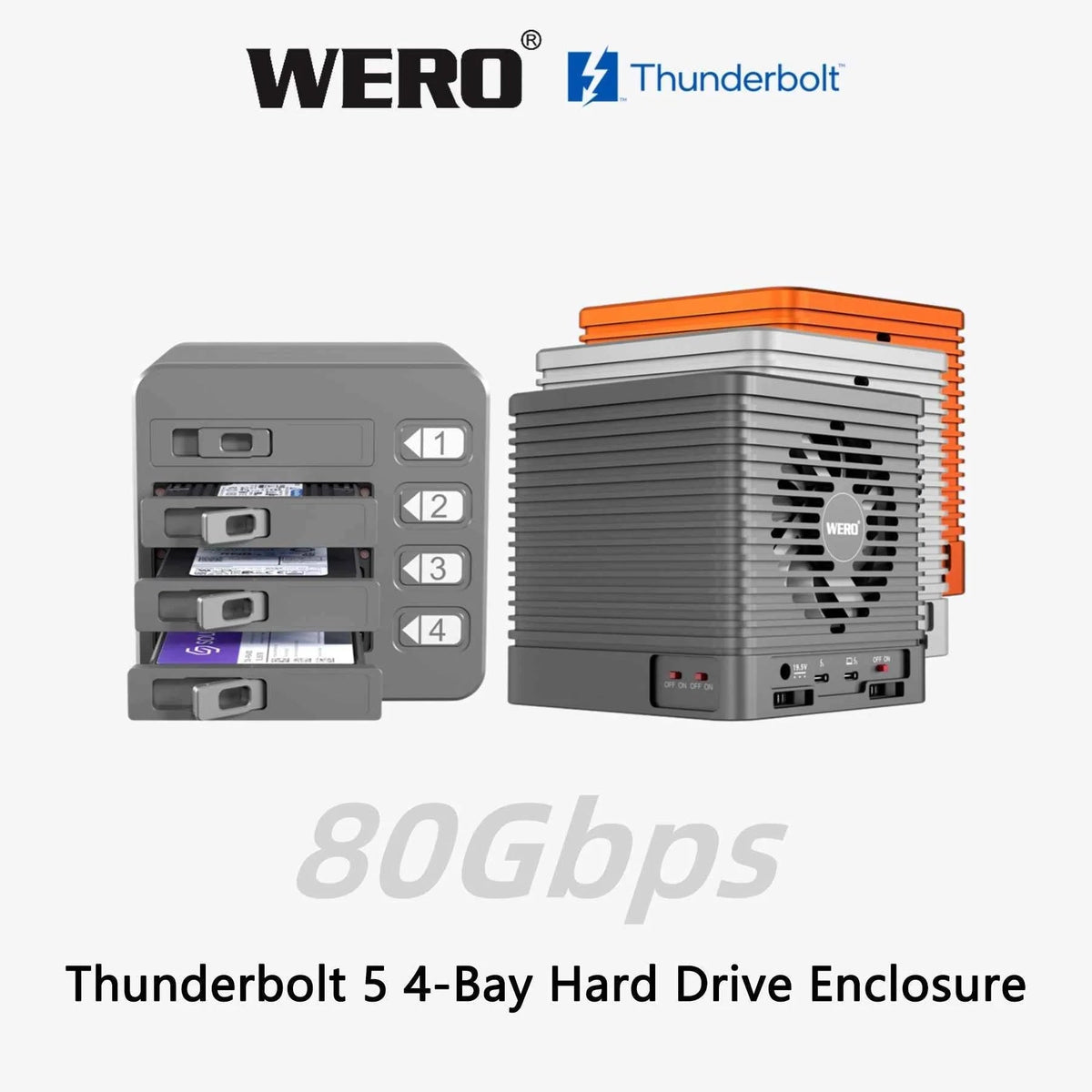

If you shoot on CFexpress or SD and edit on a Mac or a recent Windows workstation, a Thunderbolt 5 dock that combines a dual-bay NVMe enclosure with four card slots solves a specific, expensive problem: getting 200 GB of footage off a card and into a project without a 40-minute coffee break, and without carrying three separate dongles.
 What Thunderbolt 5 actually buys you over Thunderbolt 4
Thunderbolt 5 doubles the raw bandwidth of Thunderbolt 4, from 40Gbps to 80Gbps. That headline number matters much less than what it does to a single NVMe drive, because the bottleneck in a Thunderbolt 4 enclosure is the bus itself, not the SSD. On a PCIe 5.0 drive that can do 12,000 MB/s internally, Thunderbolt 4 strangles it to around 1,800 MB/s. Thunderbolt 5 roughly doubles the ceiling.
| Host connection | Internal SSD speed (Mac) | Internal SSD speed (Windows) |
|---|---|---|
| Thunderbolt 5 (80Gbps) | Up to 3,600 MB/s | Up to 3,555 MB/s |
| Thunderbolt 4 (40Gbps) | Up to 1,800 MB/s | Up to 1,800 MB/s |
| USB 4 | Up to 1,800 MB/s | Up to 1,800 MB/s |
| Thunderbolt 3 | Up to 1,400 MB/s | Up to 1,400 MB/s |
The practical takeaway: the enclosure is not the upgrade — your host and your cable are. If you connect a Thunderbolt 5 dock to a Thunderbolt 4 Mac, you get Thunderbolt 4 speeds, cleanly and without warning. That is not a defect; it is how the bus works.
The cable rule that trips up more people than anything else
Thunderbolt 5 requires an Intel officially certified Thunderbolt 5 cable. This is not marketing language — passive Thunderbolt cables have to carry 80Gbps of signal integrity over a fixed length, and uncertified cables frequently deliver Thunderbolt 4-level performance or intermittent drops under sustained load.
There is a specific trap worth knowing: cables that claim to contain a "certification chip" are, by definition, counterfeit certified cables. Certified Thunderbolt cables do not work that way. If you already own certified Thunderbolt 5 cables from a reputable brand, use them; otherwise use the certified cable that ships in the box and do not swap it out to save desk space.
Choosing the right SSD (read this before you buy a drive)
The enclosure takes 2280 M.2 NVMe M-key drives, and supports PCIe 5.0, 4.0 and 3.0. Two rules matter:
- Do not buy an SSD with a heat spreader or heatsink attached. The bay is designed around a bare drive — the enclosure's own thermal management handles cooling through the chassis and the fan. A drive with a factory heatsink physically will not fit.
- Match the drive to your host, not to its spec sheet. A PCIe 5.0 SSD is limited by the Thunderbolt 5 port's bandwidth. You do not need the fastest drive on the market — you need a drive whose sustained write speed does not collapse after 60 seconds of writing.
For video work, sustained write performance matters far more than peak read. A drive that hits 7,000 MB/s for eight seconds and then drops to 800 MB/s will ruin a multicam project. Look for drives with a large SLC cache or, better, TLC/MLC enterprise-oriented NAND with stable steady-state writes.
The enclosure uses two independent controllers for its two M.2 bays. That gives you a genuinely useful option that single-bay enclosures cannot offer: dedicate one bay to your active project and the second to a mirrored backup copy, written in the same session. If you would rather combine the two bays into one larger volume, confirm RAID and spanning support with WERO support first.
The four card slots, and the honest speed limits of each
Card slots on docks are usually an afterthought. Here is what each one actually delivers, including the limits imposed by the card formats themselves rather than the dock:
| Slot | Max speed | What limits it |
|---|---|---|
| CFexpress Type B | 1,000 MB/s | Interface allocation (10Gbps class) |
| CFexpress Type A | ~800 MB/s | Inherent speed ceiling of Type A cards |
| SD 4.0 | 300 MB/s | Inherent speed ceiling of SD cards |
| TF (microSD) 4.0 | 280 MB/s | Inherent speed ceiling of TF cards |

Two things are worth internalizing here. First, CFexpress Type A topping out around 800 MB/s is a card limitation, not a dock limitation — no reader on earth will make a Type A card faster. Second, and more importantly: all four card slots can operate in parallel. Offloading two CFexpress B cards, an SD card and a TF card simultaneously is where a dock like this earns its price, because your total ingest time becomes the slowest card instead of the sum of all of them.
Thermal design: why the fan is not spinning (and when it will)
The chassis is 127 × 127 × 18.5mm and weighs 379g, with an aluminum body acting as the primary heatsink and a temperature-controlled fan as the backup. The fan behavior is deliberately unobtrusive and worth understanding so you do not mistake it for a fault:
- Boot: the fan spins at full speed for 5-10 seconds during power-on self-test, then stops. This is normal.
- Below 45°C: fan off. Silent operation during light use and card offloads.
- 45°C and above: low-speed operation begins.
- Above 60°C: full speed. You will hear it during sustained multi-hundred-gigabyte writes, which is exactly when you want it running.
-
Between those points: stepless speed adjustment following actual temperature.

For editors, the practical value is consistency. Thermal throttling is what turns a 3,600 MB/s enclosure into a 900 MB/s enclosure halfway through an ingest. A chassis that actively manages temperature under load is the difference between a benchmark number and a production tool.
Power: bus-powered, with an auxiliary option
The dock runs on bus power drawn from your computer over the USB-C connection, so there is no power brick to carry. For sustained high-load work — two NVMe drives writing plus four cards offloading at once — it also accepts an auxiliary PD power supply at 5V/3A, 9V/2A, 12V/1.5A, 15V/1.2A or 20V/1A. If you ever see a drive drop off during a heavy simultaneous operation, adding auxiliary power is the first thing to try.
The two 10Gbps USB-A ports each provide 7.5W of power delivery, and there is a separate USB-A 2.0 port intended specifically for mice and keyboards — a deliberate choice that avoids the 2.4GHz interference that USB 3.0 ports can cause with wireless input devices. If you have ever had a wireless mouse stutter only when a drive was plugged in, you know why that port exists.
Compatibility: check this list before you order
This is the part that decides whether the device works for you, and it is stricter than most Thunderbolt accessories:
| Your system | Status |
|---|---|
| macOS 15.2 or later | Supported |
| Windows 11 24H2 or later | Supported — required for stable Thunderbolt 5 operation |
| iOS and Android devices | Supported |
| Windows 10 on a Thunderbolt 4 PC | Update to Windows 11 24H2 or later for best stability |
| Windows PC with Thunderbolt 3 JHL7540 controller | Most issues are fixed by an official Thunderbolt firmware update; a few devices with no available update remain incompatible |
| Windows PC with Thunderbolt 3 JHL6540 controller | Generally not supported — the platform is roughly a decade old and most units have no firmware update path |
| Windows 8 / 7 / XP | Not supported |
If you are on Apple silicon with a Thunderbolt 5 port, you are in the sweet spot. If you are on an older Intel Mac or a Windows Thunderbolt 3 machine, verify your controller model before ordering — the two JHL controllers above are the specific ones that cause trouble.
Why your benchmark numbers look wrong
Two things routinely cause false alarms:
You used the wrong tool. Blackmagic Disk Speed Test reports noticeably lower values than it should on this class of hardware because of its different testing methodology. Use AmorphousDiskMark on Mac and CrystalDiskMark 8.01 on Windows 10/11 to get numbers comparable to the published spec. Comparing a Blackmagic result to a CrystalDiskMark result is comparing two different measurements.
You are measuring a cache burst, not sustained throughput. Every consumer NVMe drive reports spectacular numbers for the first few gigabytes, then settles. When you test, run the larger file size setting and watch what happens in the second and third pass — that is the number that predicts how an ingest will actually go.
Three workflows this setup is built for
1. On-set DIT and data wrangling
Two CFexpress B cards, an SD card and a TF card offload in parallel while your project drive stays mounted. Camera originals land on bay one, checksums and a mirrored copy land on bay two — all from a bus-powered unit drawing from a laptop on battery.
2. Editing directly off external storage
At 3,600 MB/s, an external NVMe array is fast enough to work from directly instead of copying everything to your internal drive first. Multi-stream 4K and ProRes projects stop being a question of bandwidth and start being a question of how you organize your bins.
3. A single-cable desk
One Thunderbolt 5 cable to the laptop carries the card reader, the SSD bays and your peripherals. When you need to leave, you unplug one cable.
Frequently asked questions
Do I need a Thunderbolt 5 computer to use it?
No — it will run on Thunderbolt 4, USB 4 and Thunderbolt 3 hosts at those slower speeds. But you will not see the 3,600 MB/s figure. Thunderbolt 5 is what unlocks the top of the range.
Can I use an SSD with a built-in heatsink?
No. The bays accept bare 2280 M.2 NVMe M-key drives. The enclosure's aluminum chassis and fan provide the cooling. Drives with heat spreaders will not fit.
Why is my WD or Samsung SSD slower than the review numbers?
Check your host first — a Thunderbolt 4 port caps the drive at 1,800 MB/s no matter what SSD is installed. Then check sustained write behavior rather than peak speed, and make sure you are testing with the correct benchmark tool.
Does it work without a separate power supply?
Yes. It is bus-powered over the USB-C connection to your computer. An auxiliary PD supply is optional and useful for sustained heavy simultaneous workloads.
The fan spun up loudly when I plugged it in, then went silent. Is it broken?
No. That is the power-on self-test, which runs the fan at full speed for 5-10 seconds. After that the fan stays off below 45°C and only ramps up when the drives get hot.
Can I use a different Thunderbolt cable?
Only an Intel officially certified Thunderbolt 5 cable. Uncertified cables — and especially cables marketed as having a "certification chip," which are counterfeit — will cause instability and slower speeds.
Do I need to install drivers?
No driver installation is required on supported macOS, Windows, iOS or Android systems.
One cable, nine slots, up to 3,600 MB/s
The WERO 9-in-1 Thunderbolt 5 Card Reader & SSD Enclosure runs two 2280 NVMe drives on PCIe 5.0 with CFexpress Type A and B, SD 4.0 and TF 4.0 offloading in parallel — bus-powered, temperature-controlled, and shipped with an Intel-certified Thunderbolt 5 cable. Upgrade your ingest to 80Gbps.
Not sure whether your machine is compatible? Send us your computer model and Thunderbolt controller information before you order — we will confirm it works with your setup so you are not troubleshooting a return later.